
Key things to know about the new Personal Budgeting Template
The new BudgetDog Personal Budgeting Template is formula-based, which eliminates duplication and improves data consistency compared to the old template. It's more stable and reliable overall. This article covers important things to know while working with your new template.
If you're moving from an old template to the new one, see How to migrate to the new Budgetdog personal budgeting template for step-by-step migration instructions.
1. Create and edit categories only in the Avery_Categories tab
All category management happens in the Avery_Categories tab. This is the only place where you can add, rename, or remove categories. If you try to edit category names anywhere else, you'll see this error:

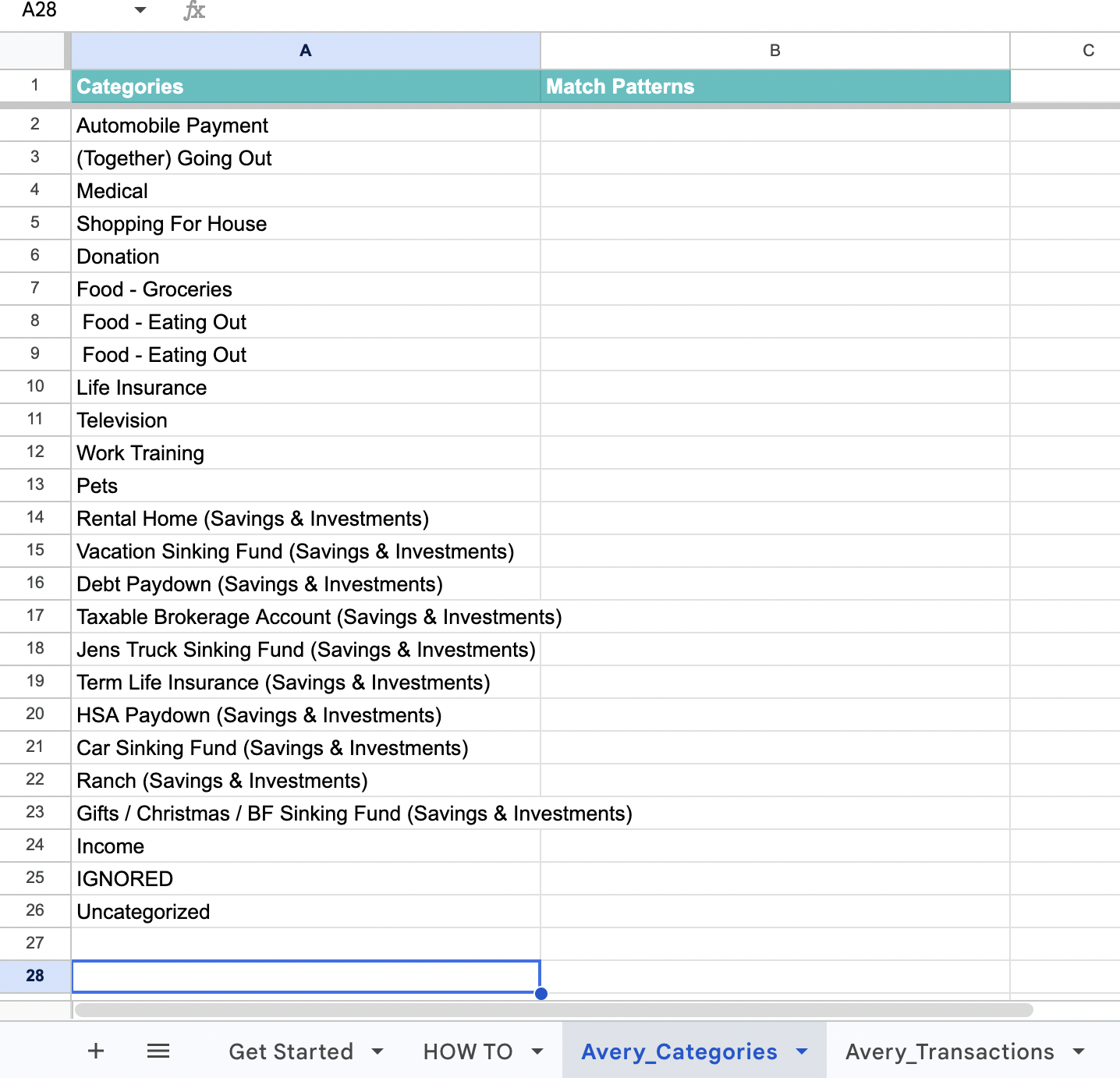
To add or edit categories, go to the Avery_Categories tab. Add new categories by typing in a new line in column A, or edit existing categories directly in column A:
2. Add additional income categories with the correct format
If you want to add additional income categories such as One Time Expense, Variable Income, or Savings & Investments so they appear in the Addl Inc, Exp & Inv tab, you need to format them correctly in the Avery_Categories tab.
Use this format: The category name (the additional income type)
Examples:
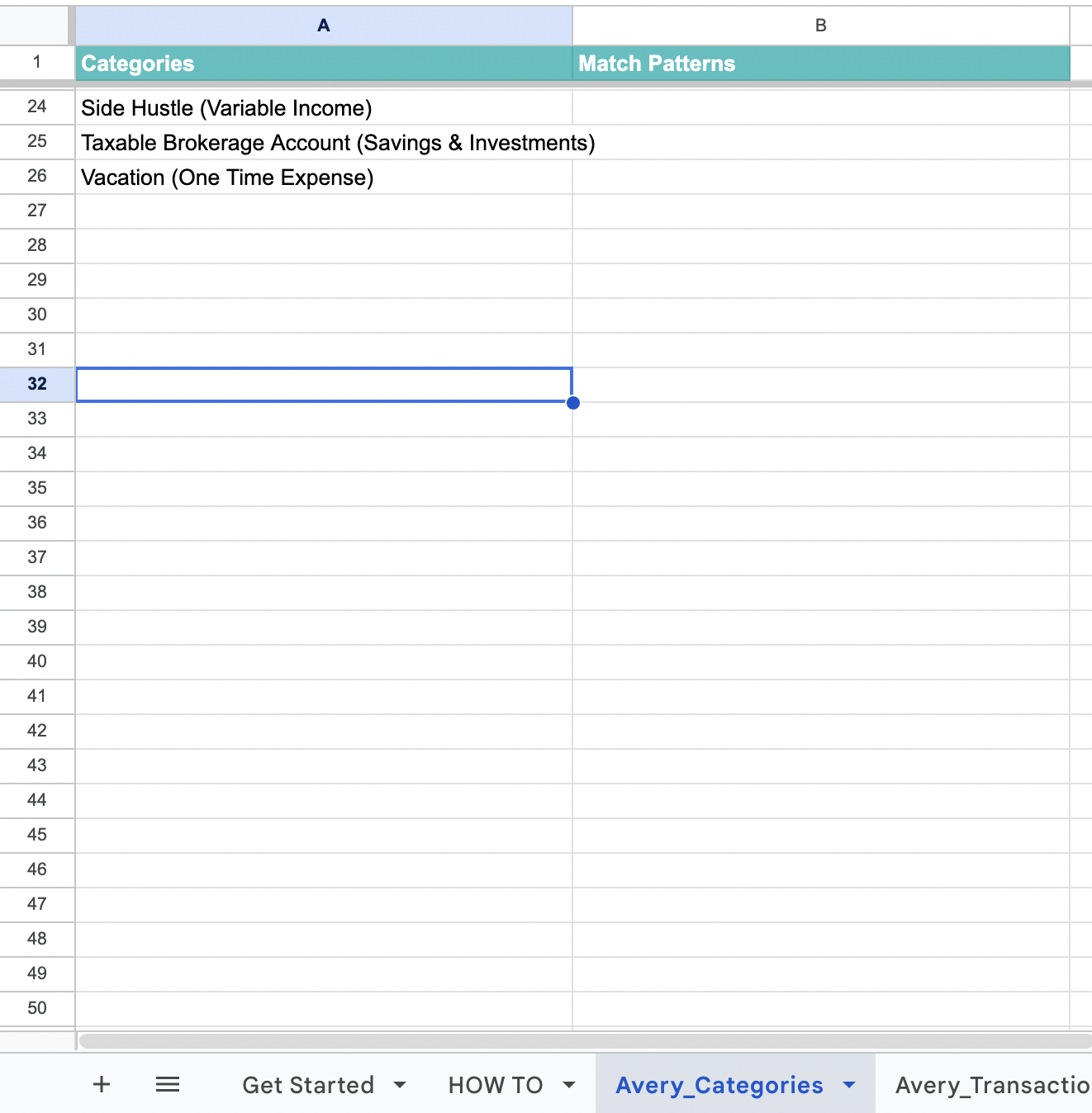
Side Hustle (Variable Income)
Taxable Brokerage Account (Savings & Investments)
Vacation (One Time Expense)
As shown in the screenshot below:
3. Category limits for additional income and expense items
As you edit and add categories in the Avery_Categories tab, be aware of the following limits:
In the Addl Inc, Exp & Inv tab:
One Time Expense — maximum 15 items
Variable Income — maximum 15 items
Savings & Investments — maximum 15 items
In the Budgeted Expenses - Estimate tab:
Normal expense items — maximum 30 items
If you exceed these limits, categories won't map correctly to the Budgeted Expenses - Estimate tab or the Addl Inc, Exp & Inv tab. In some cases, this may cause an error to appear.
4. Recover from errors using version history
If you encounter the category-editing error (like the one in the screenshot below) and can't use Ctrl+Z or Command+Z to undo, you can restore your spreadsheet to a previous working version using Google Sheets' version history.
Steps to restore a previous version:
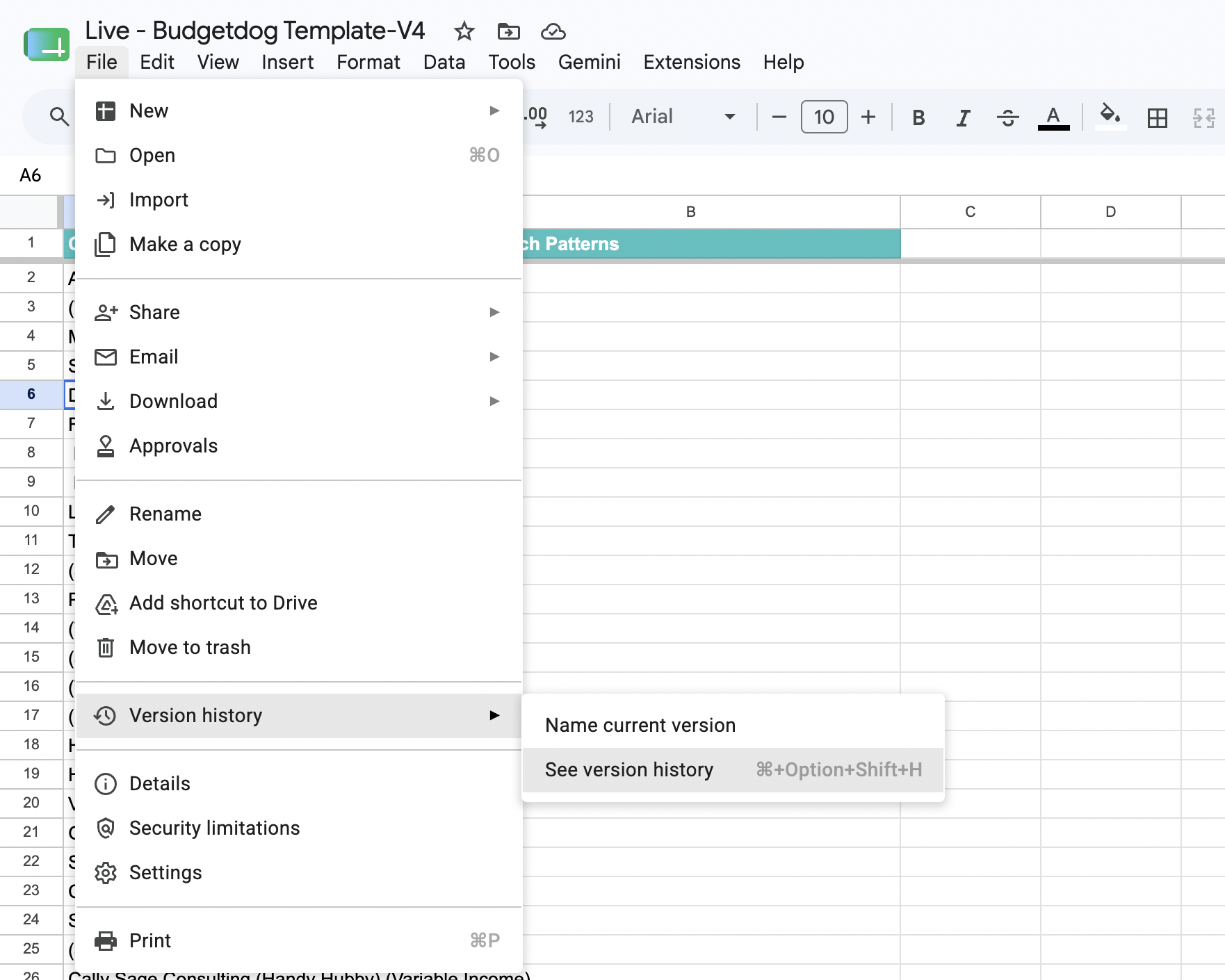
Click File in the menu bar
Hover over Version history
Click See version history (or use the keyboard shortcut Ctrl+Shift+H on Windows or Command+Option+Shift+H on Mac)
In the version history sidebar on the right, you'll see a list of all saved versions with timestamps:
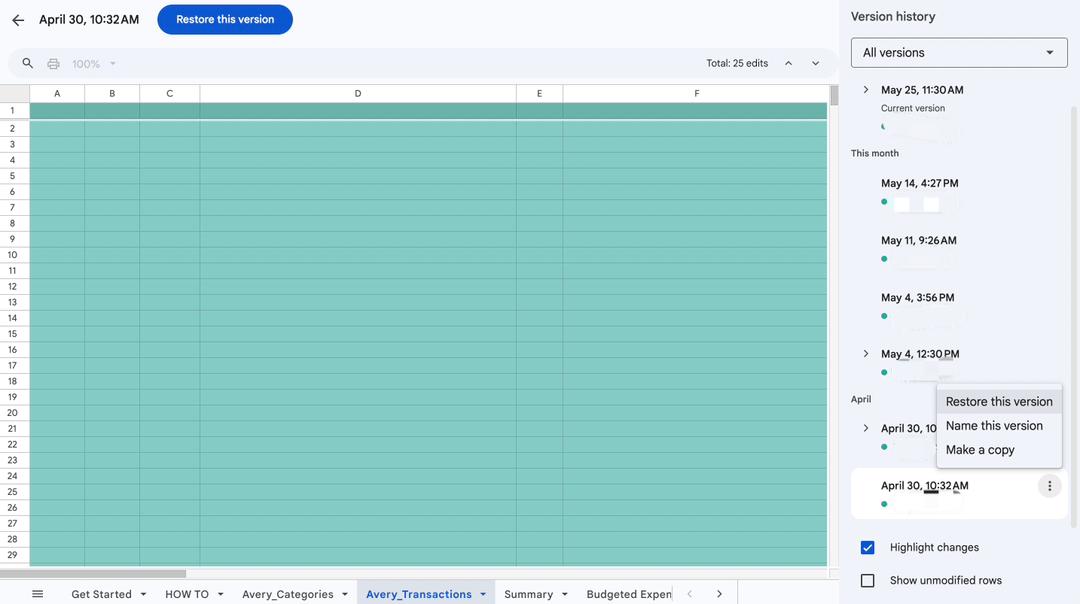
Click on the last working version before you encountered the error, then click the three-dot menu beside it and select Restore this version. This will bring back your spreadsheet to that working state.
5. Enter budget figures in the Budgeted Expenses - Estimate tab
In the Budgeted Expenses - Estimate tab, enter your budgeted amounts in column B (January) for each category. Don't edit the category names in this tab. If you need to change a category name, do it in the Avery_Categories tab.
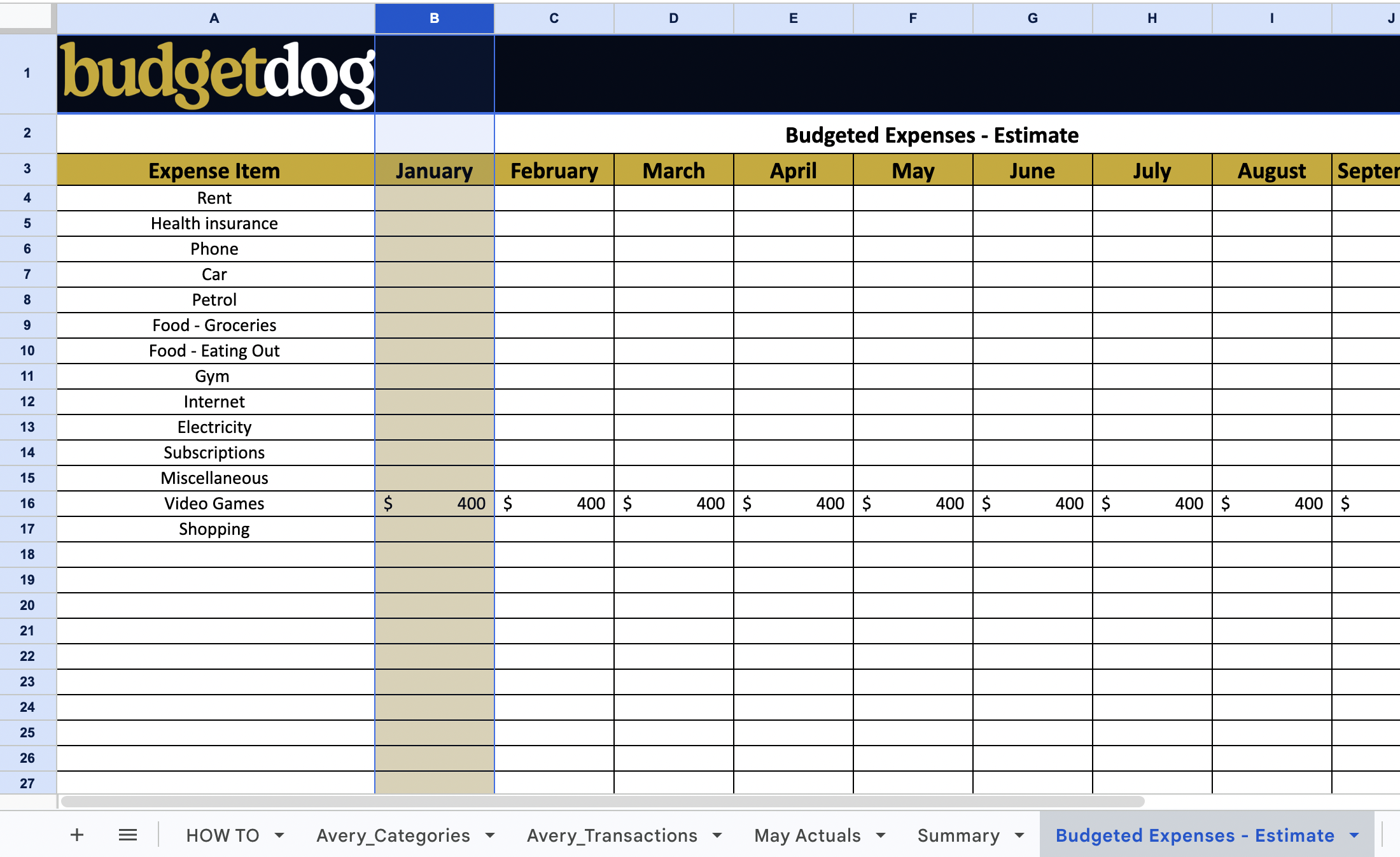
Editing category names directly in this tab will cause errors. All category management must happen in the Avery_Categories tab.
Next steps
For help migrating from an old template, see How to migrate to the new Budgetdog personal budgeting template.
For troubleshooting common issues, see Reviewing and Fixing Your Budgetdog Template.