
Increasing the transaction range in your BudgetDog template
If your spreadsheet has more than 1,015 transactions, the Avery_Transactions calculations may stop calculating things as expected. You can fix this by expanding the table range in the Raw Data Processing tab.
When to use this guide
Use these steps when your dashboard or summary numbers look incomplete even though new transactions are still syncing from your bank. The template default covers 1,015 rows; once you pass that, the formulas no longer include the extra rows.
Check the bottom of your Transactions list. If the last row is near 1,015 and newer transactions are missing from totals, you need to expand the range.
Step 1: Open the Raw Data Processing tab
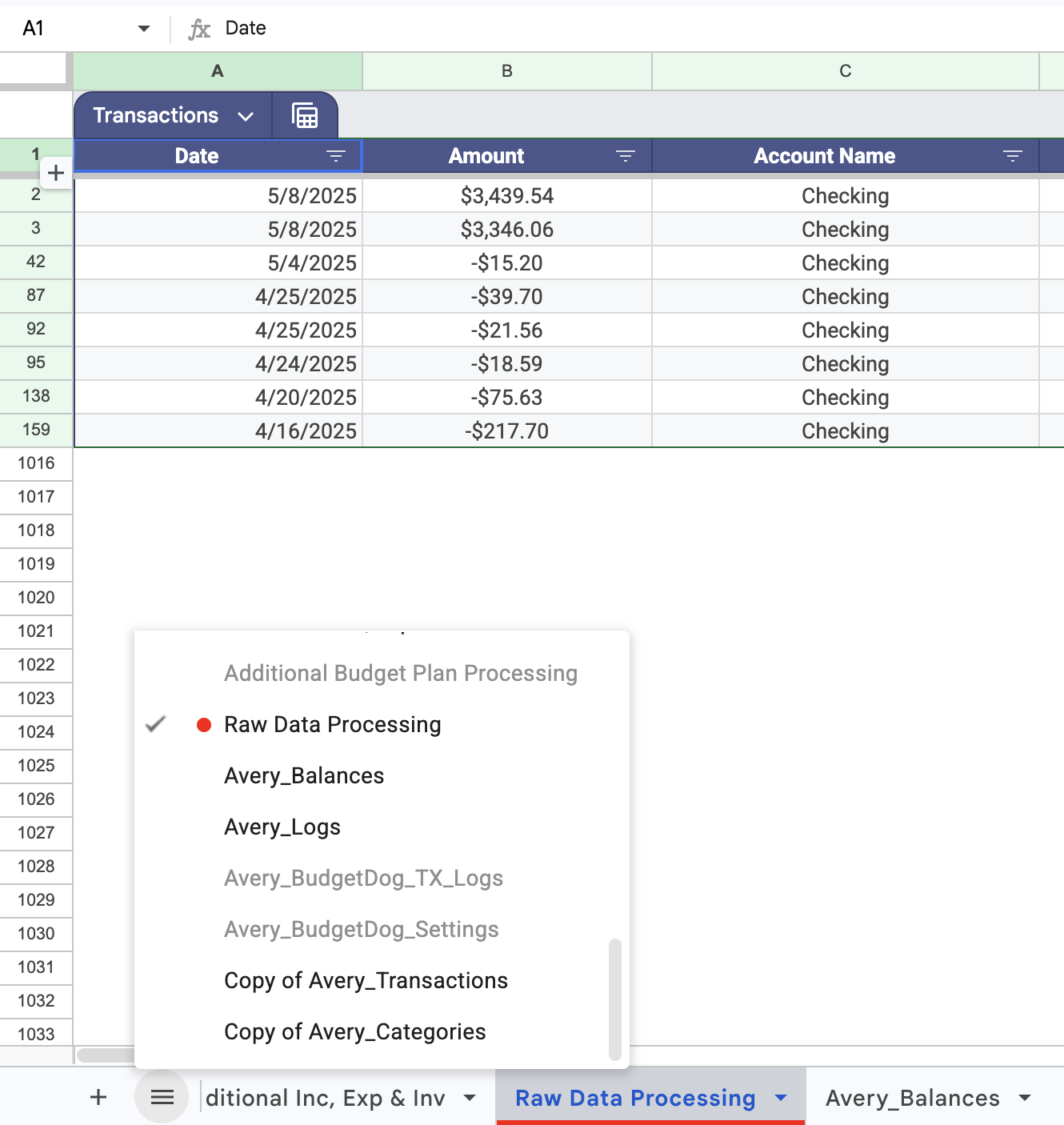
In your Budgetdog spreadsheet, click the Raw Data Processing tab at the bottom. This is the sheet that holds the synced transaction data.
Step 2: Open the Transactions table menu
Click the hamburger menu on the far left of the sheet, then select Transactions from the list below the toolbar. Click the arrow next to Transactions to open the table options.
Step 3: Choose Adjust table range
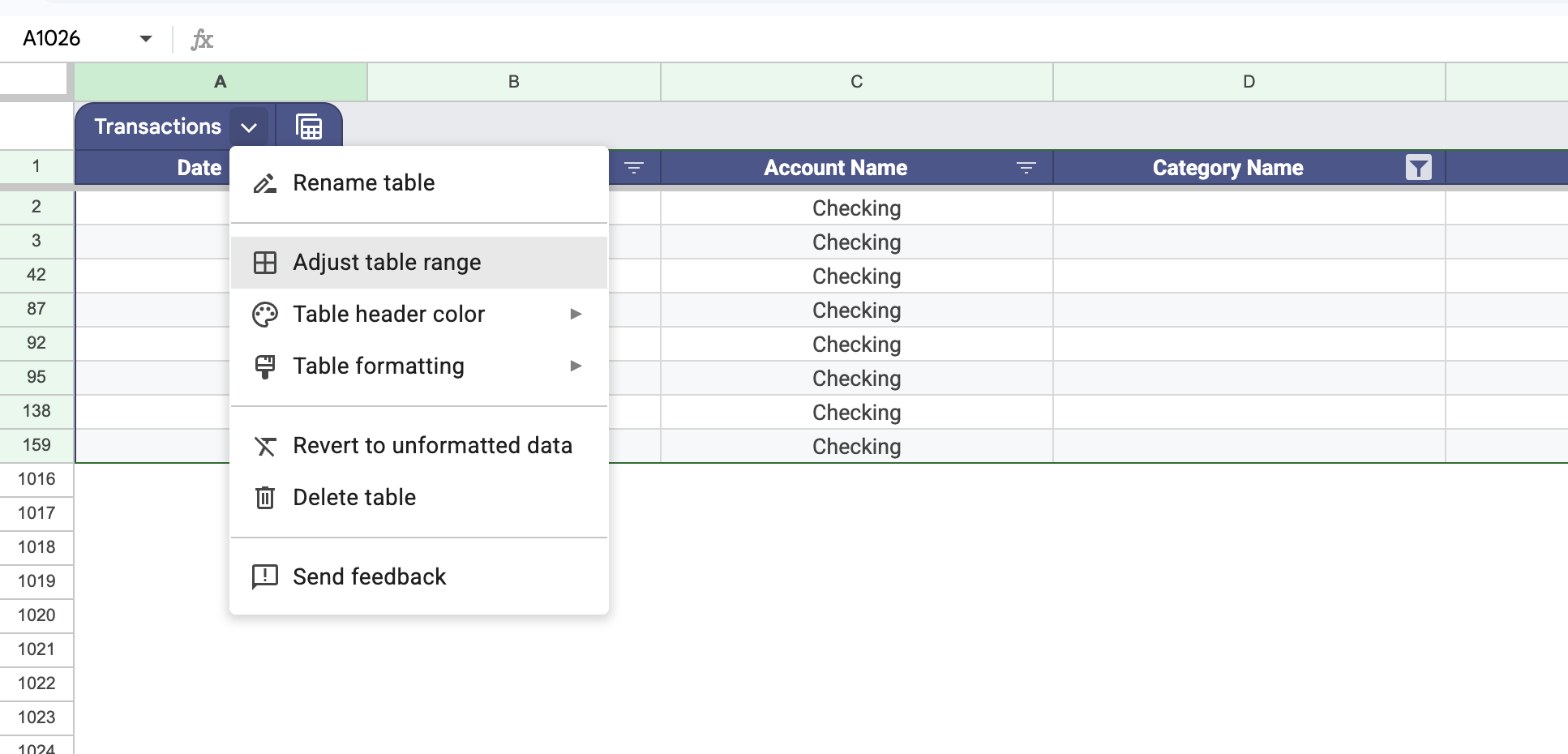
From the dropdown, select Adjust table range. A modal will appear showing the current range.
Step 4: Expand the range and confirm
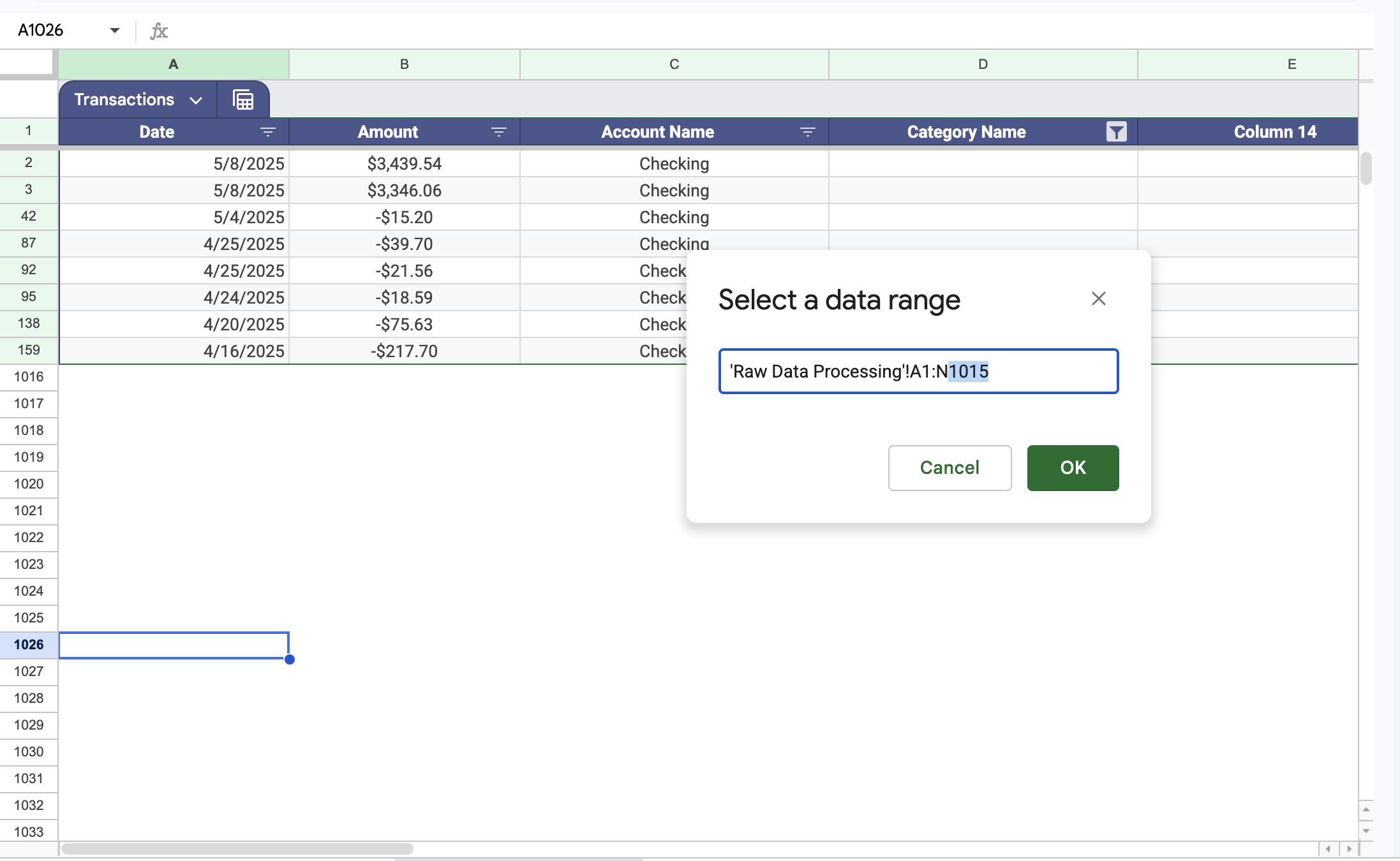
In the modal, change the range from:
'Raw Data Processing'!A1:N1015
to:
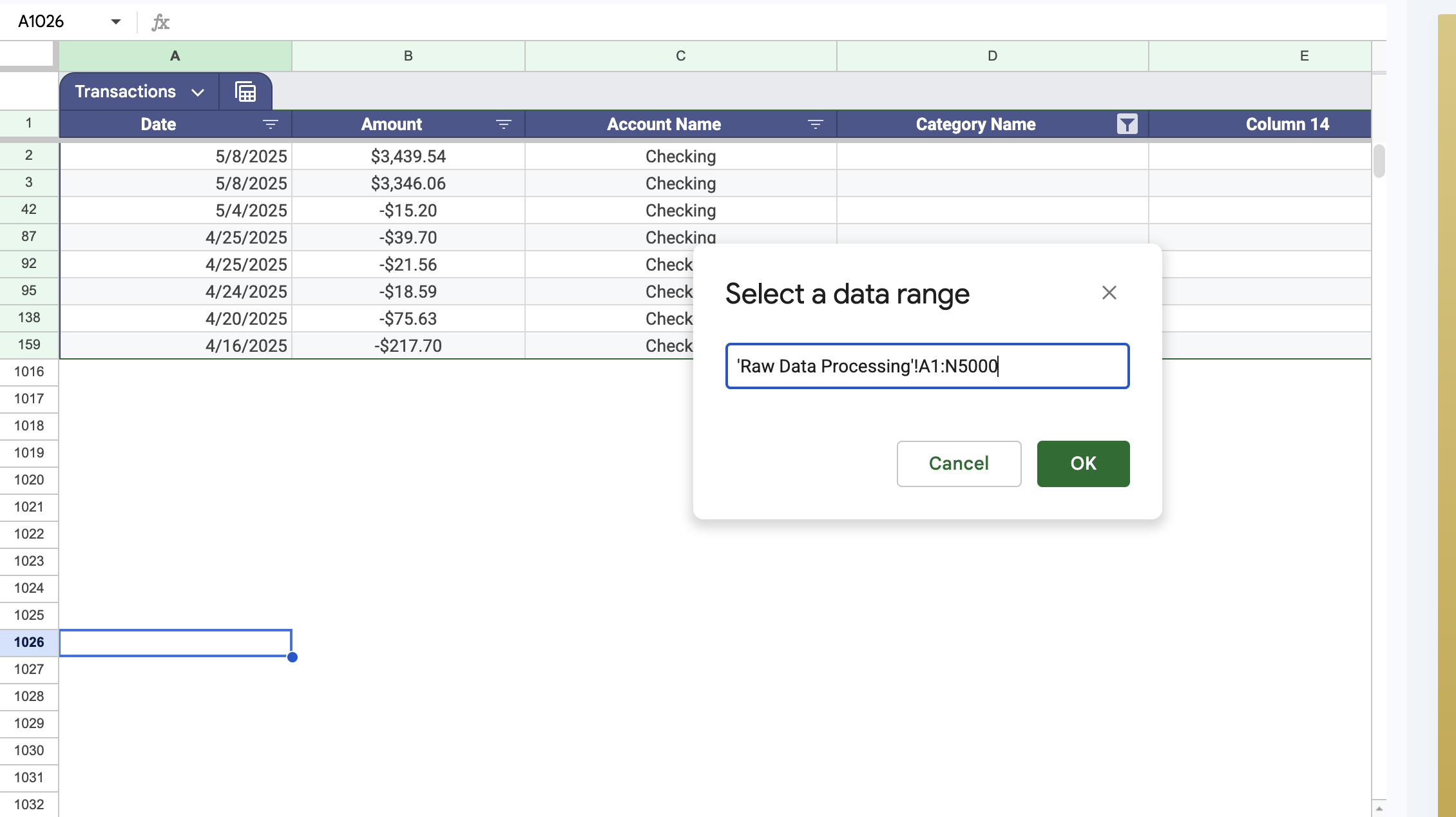
'Raw Data Processing'!A1:N5000
Then click OK. The modal closes and the formulas recalculate automatically.
What happens next
Your spreadsheet now references up to 5,000 rows. All existing and future transactions will be included in the Avery_Transactions calculations. You can repeat this process later if you ever approach 5,000 transactions.