
How do I recover from errors in my Budgetdog template?
If you make any error in your Budgetdog template—whether it is a bad category edit, a deleted formula, or an accidental change to any sheet—you can restore a previous working version using Google Sheets' built-in version history.
When to use version history
If you encounter a category-editing error like the one below and cannot use Ctrl+Z or Command+Z to undo it, version history is the fastest way to recover.

Restore a previous version
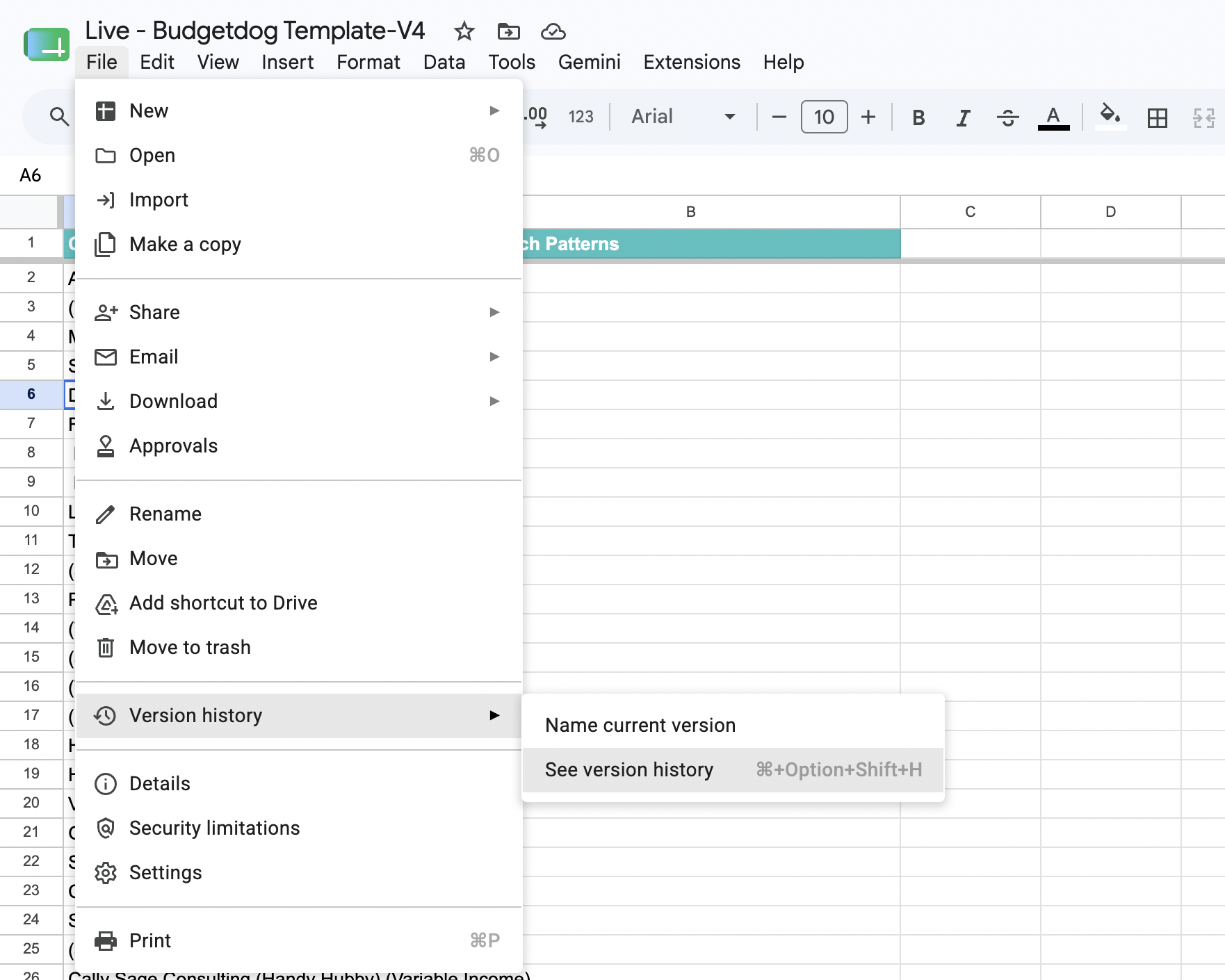
Click File in the menu bar.
Hover over Version history.
Click See version history (or press Ctrl+Shift+H on Windows, Command+Option+Shift+H on Mac).
In the version history sidebar on the right, you'll see a list of all saved versions with timestamps:
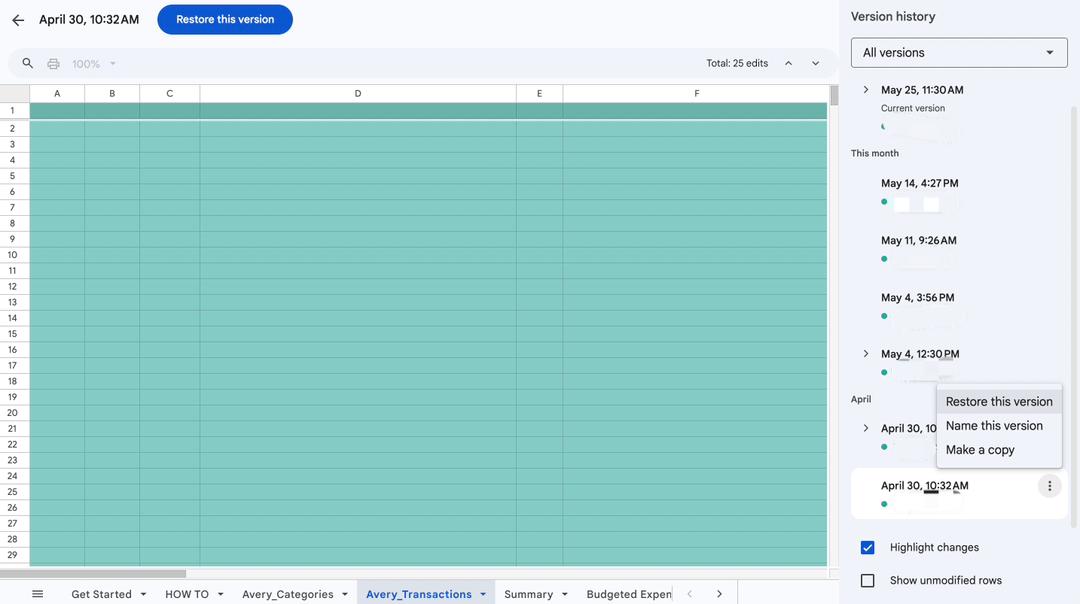
Click on the last working version before the error, then click the three-dot menu beside it and select Restore this version. This will revert the entire spreadsheet to that saved state.
Version history is especially useful for category-editing errors, but you can use it for any unintended change to your template.