
Annual plan: Share your sheet for done-for-you categorization
To use this, you must be on the Avery annual plan. If you're on monthly and would like to use the service, you can switch to annual within your dashboard by clicking here and then following the steps in this article.
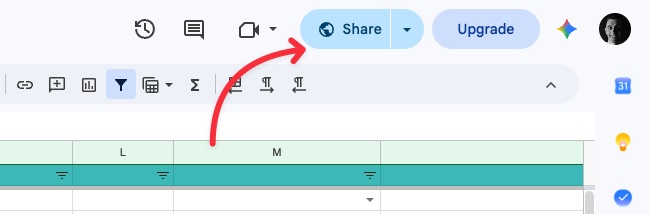
Open your Google Sheet and click the Share button in the top-right corner, then add [email protected] as an editor and send the invitation.
Share your spreadsheet
In the top-right corner of your Google Sheet, click the Share button.
In the Add people field, type
[email protected]and select the suggested Avery Agent contact that appears.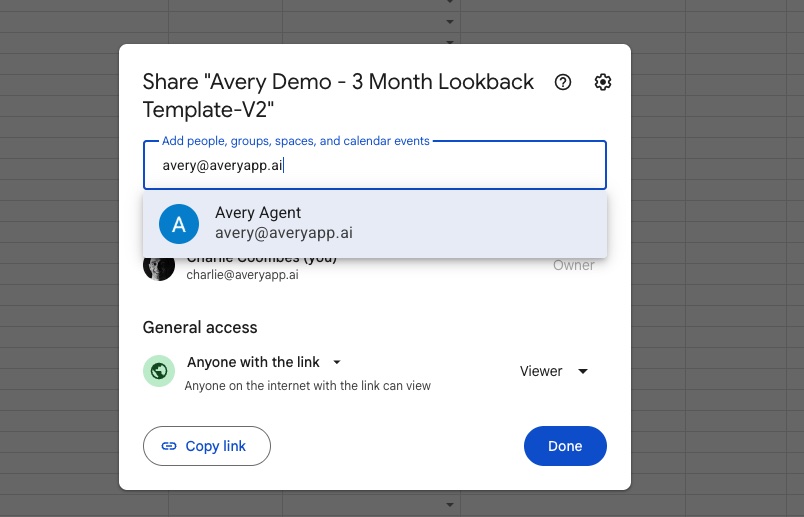
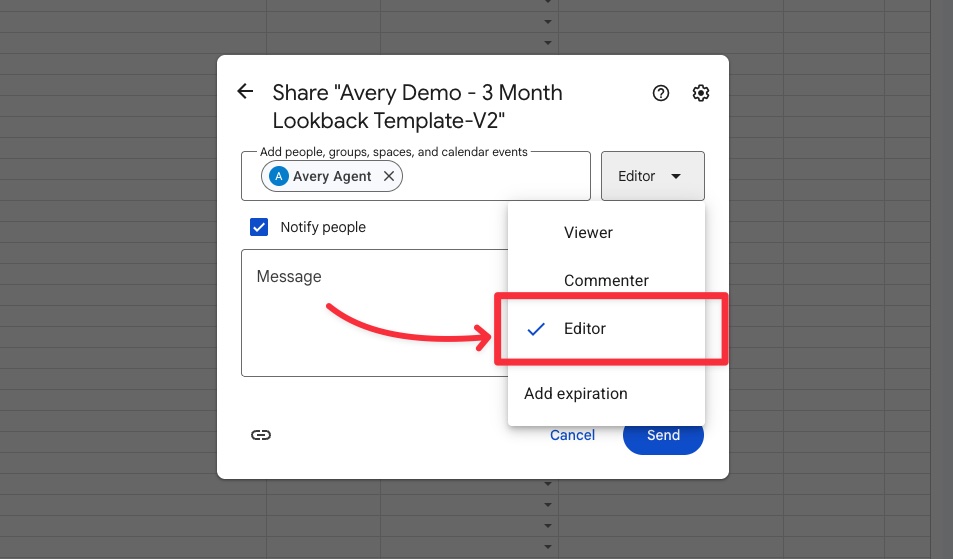
Click the permissions dropdown to the right of the contact and select Editor.
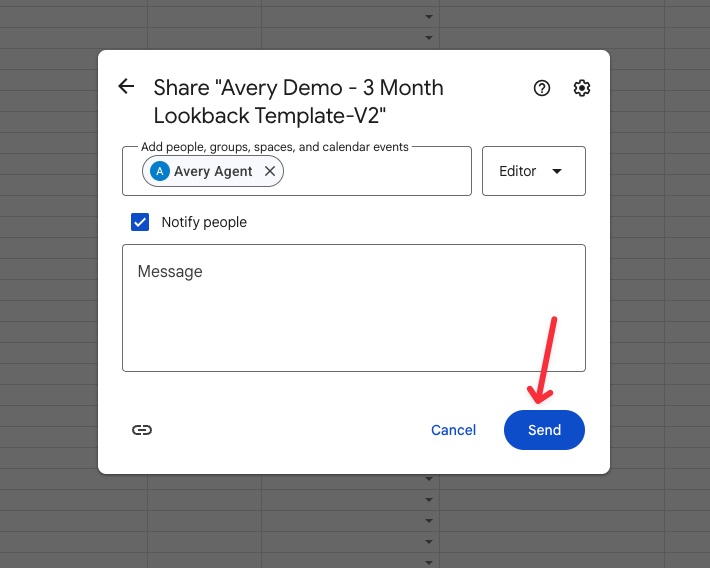
Click the Send button to share the sheet.
Add context in the message box (optional)
Before clicking Send, you can add any extra context or instructions in the Message box so our team knows exactly what to look for.
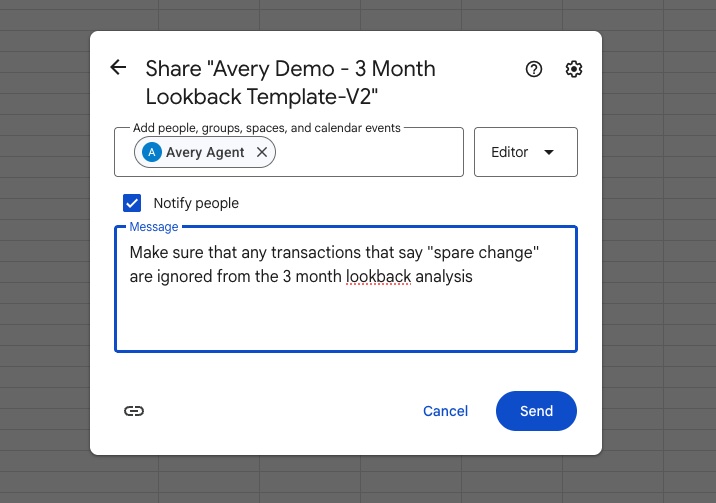
For example, you might tell us to ignore specific transactions, note which accounts are personal versus business, or flag anything else you want us to know before we start reviewing your sheet.
What happens next
After you click Send, there is nothing else you need to do. Our team will review your spreadsheet in detail.
Shortly after sharing, you will receive an email from us where we first clarify our categories to make sure we create the right categories for your specific situation. Once you have replied and confirmed the categories, we will categorize every transaction in your sheet one by one.
If we are unsure about any transaction, we will send you a follow-up email to clarify. Once you have confirmed those with us, we will complete your sheet and send you a full summary.