
Using Avery for Three-Month Lookback Analysis
Overview
This guide shows you how to use the Avery Google Sheets add-on to streamline your three-month lookback analysis. Avery automates transaction imports from your bank accounts and uses AI to categorize spending, saving you hours of manual data entry.
By the end of this guide, you'll have categorized transactions ready to analyze in your lookback template.
Before starting, make sure you make a copy of the lookback analysis template here
Step 1: Install and Open Avery
If this is your first time using Avery, install it to your Google Sheets account.
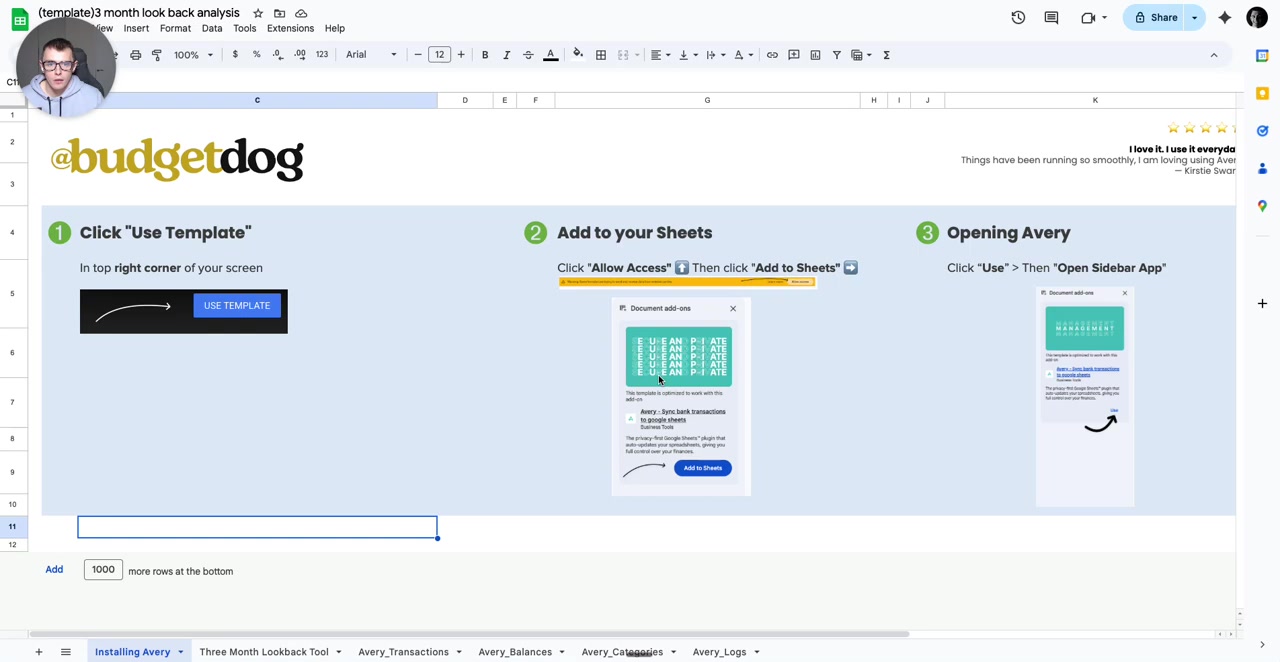
To open Avery:
Open your Google Sheet
Click Extensions > Avery > Open Avery App
The sidebar will appear on the right side of your screen
If the sidebar doesn't open automatically after installation, use the Extensions menu to launch it manually.
Step 2: Import the Last Three Months of Transactions
Use Avery's preset to quickly import three months of transaction history.
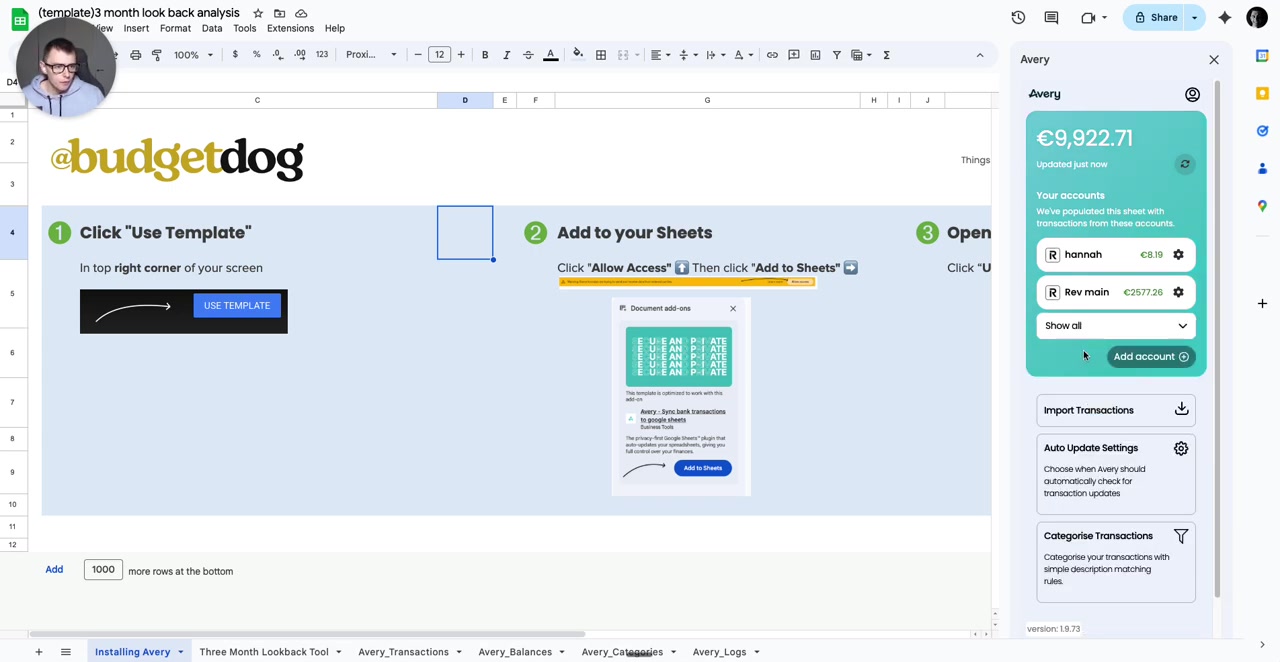
Click Import Transactions in the sidebar
Select Last 3 months from the dropdown
Click Import
A spinning wheel will indicate processing is underway
Avery will create multiple sheets in your workbook, including:
Three Month Lookback Tool - Your analysis template
Avery_Transactions - All imported transaction data
Avery_Categories - Category mapping for AI auto-categorization
Avery_Balances - All your linked accounts
Avery_Logs - Changes that Avery makes
Step 4: Understand the Lookback Template
The Three Month Lookback Tool sheet is where you'll analyze your spending patterns.
This template includes columns for:
Budget categories (e.g., Groceries, Mortgage, Subscriptions)
Monthly spend for Month 1, Month 2, and Month 3
Average calculations to inform your future budget
For a detailed walkthrough of how to use the lookback template for budgeting, watch Brennan's introductory video referenced in the sheet instructions.
Step 5: Customize Your Budget Categories
Tailor the categories to match your specific spending patterns.
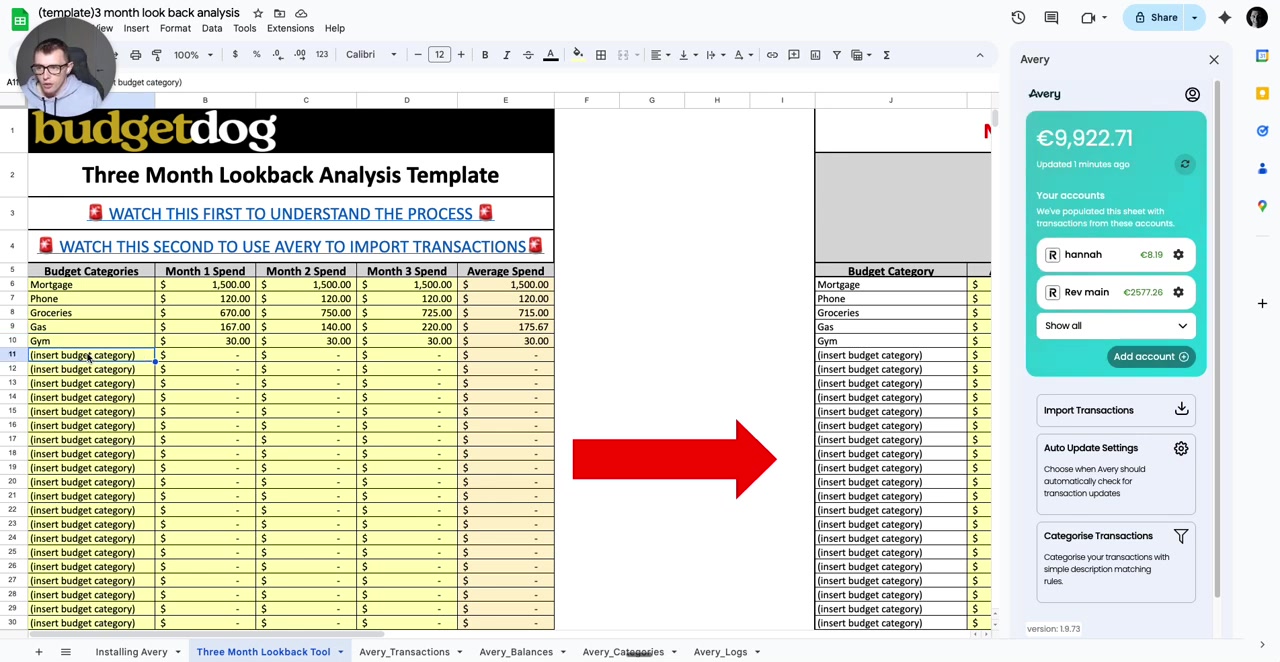
In the Three Month Lookback Tool sheet, add or edit categories in the category column
Examples: Subscriptions, Car, Health Insurance, Phone
Select and copy all your custom categories
Step 6: Map Categories in Avery
Transfer your custom categories to the Avery_Categories sheet so the AI knows what to look for.
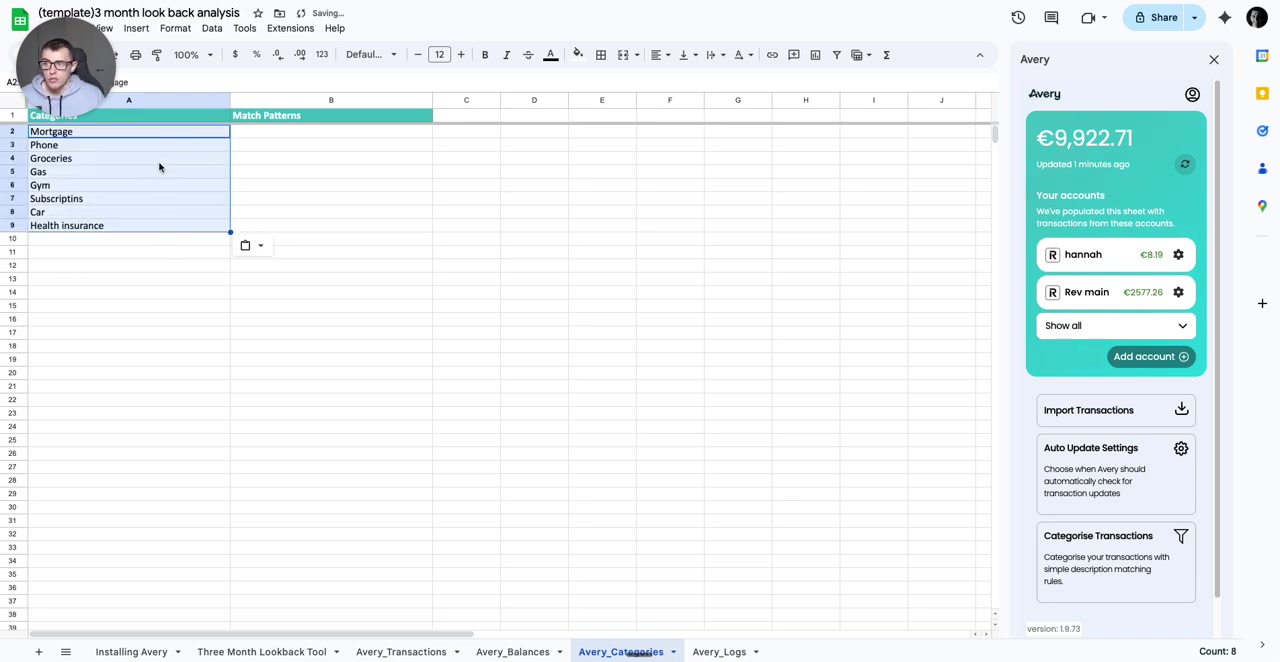
Navigate to the Avery_Categories sheet
Delete the pre-built categories you don't need
Paste your custom categories into column A
Leave the Match Patterns column (B) blank for now
Step 7: Review Imported Transactions
Check the Avery_Transactions sheet to see your raw transaction data.
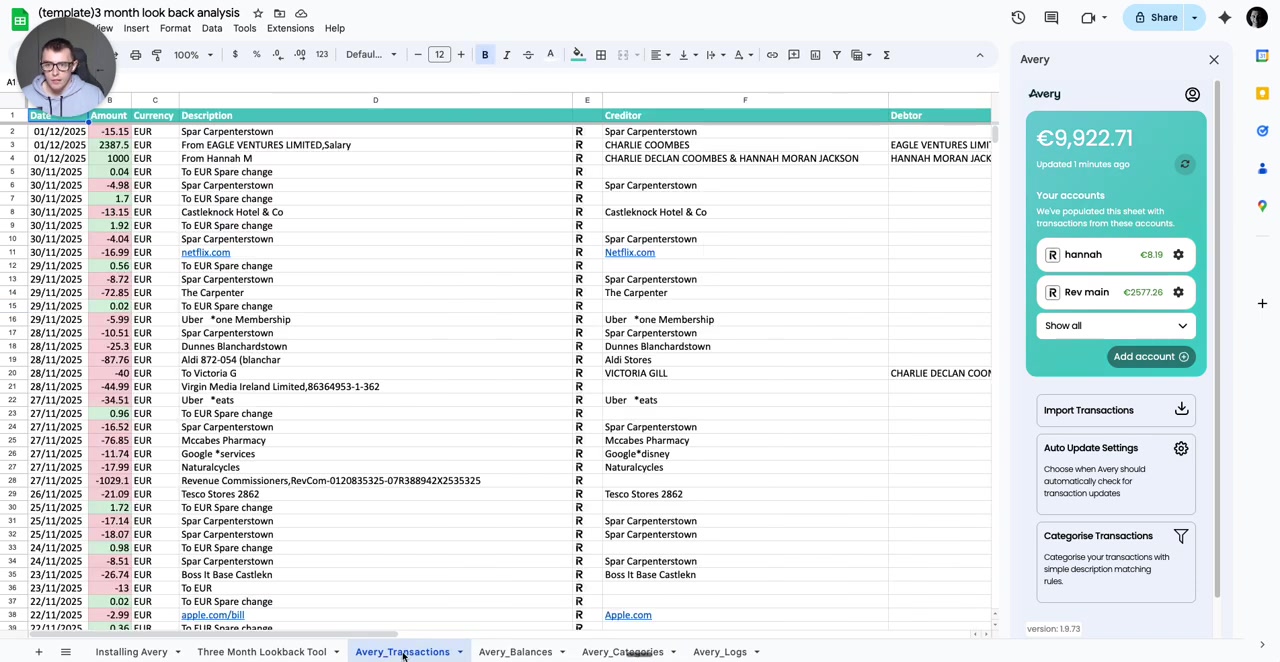
This sheet includes columns for:
Amount - Transaction value
Description - Transaction details
Creditor - Merchant or payee
Category Type (column J) - Where AI categorization will appear
Initially, the Category Type column will be blank until you run auto-categorization.
Step 8: Run AI Auto-Categorization
Let Avery's AI automatically assign categories to your transactions based on your custom list.
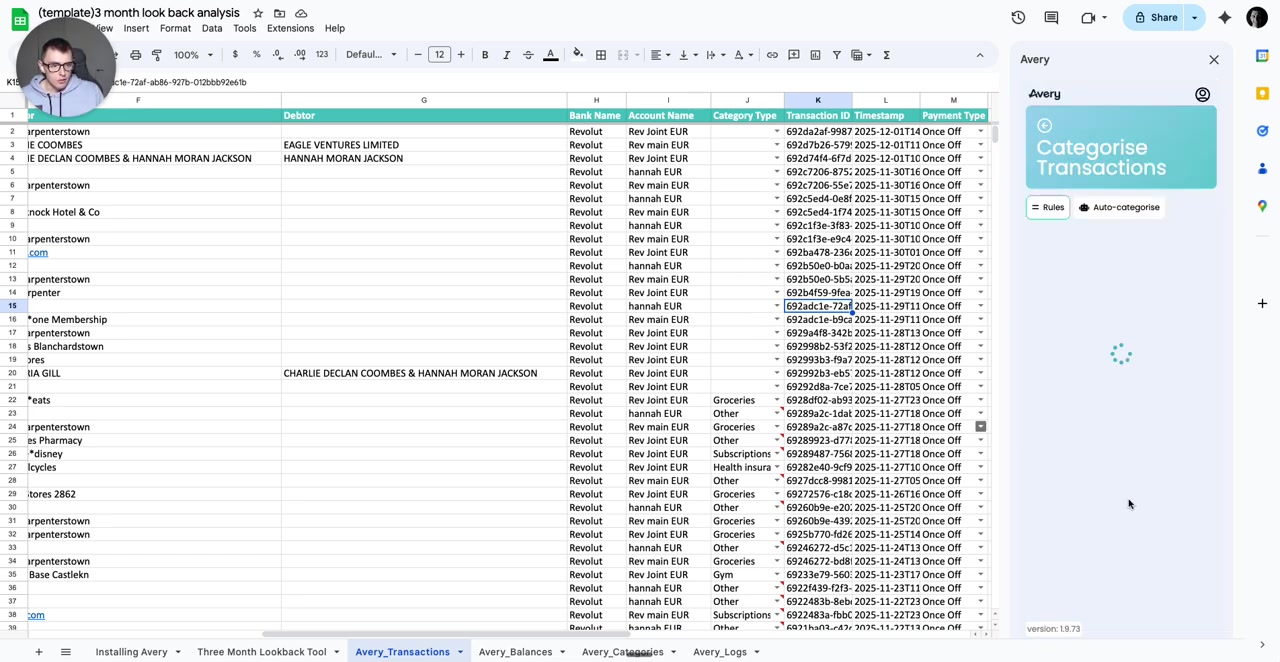
In the Avery sidebar, navigate to Categorise Transactions
Select Auto-categorise
Click Run AI Auto-cat
Processing time varies (1-3 minutes depending on transaction volume and internet speed)
Once complete, column J in the Avery_Transactions sheet will populate with category assignments.
Let the auto-categorization process complete fully before making manual edits. The process runs in the background.
Step 9: Filter and Analyze by Category
Use Google Sheets filters to sum spending for each category across the three months.
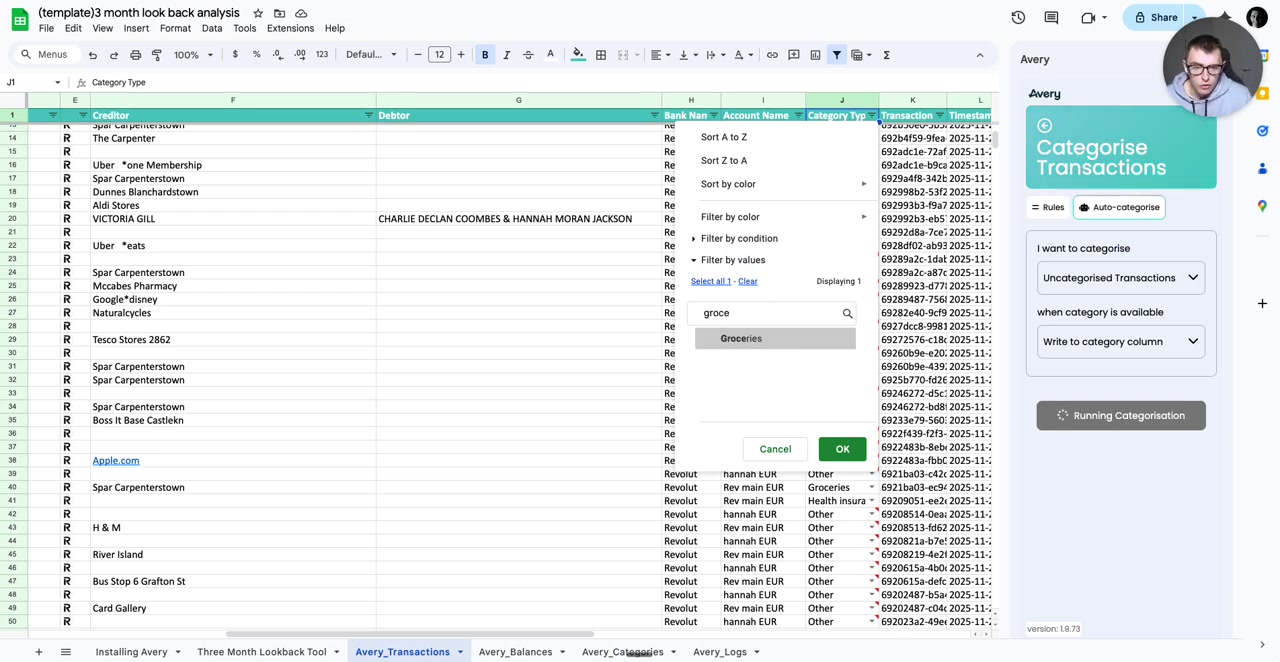
Click Data > Create a filter
Click the filter icon in the Category Type column header
Select a single category (e.g., Groceries)
Use the SUM function or manually add up amounts for that category
Transfer totals to the corresponding category in your Three Month Lookback Tool
Repeat for each category
For faster analysis, consider using SUMIF formulas to automatically calculate category totals rather than filtering manually.
Step 10: Correct Miscategorizations
The AI won't be perfect. Review and fix any incorrectly categorized transactions.
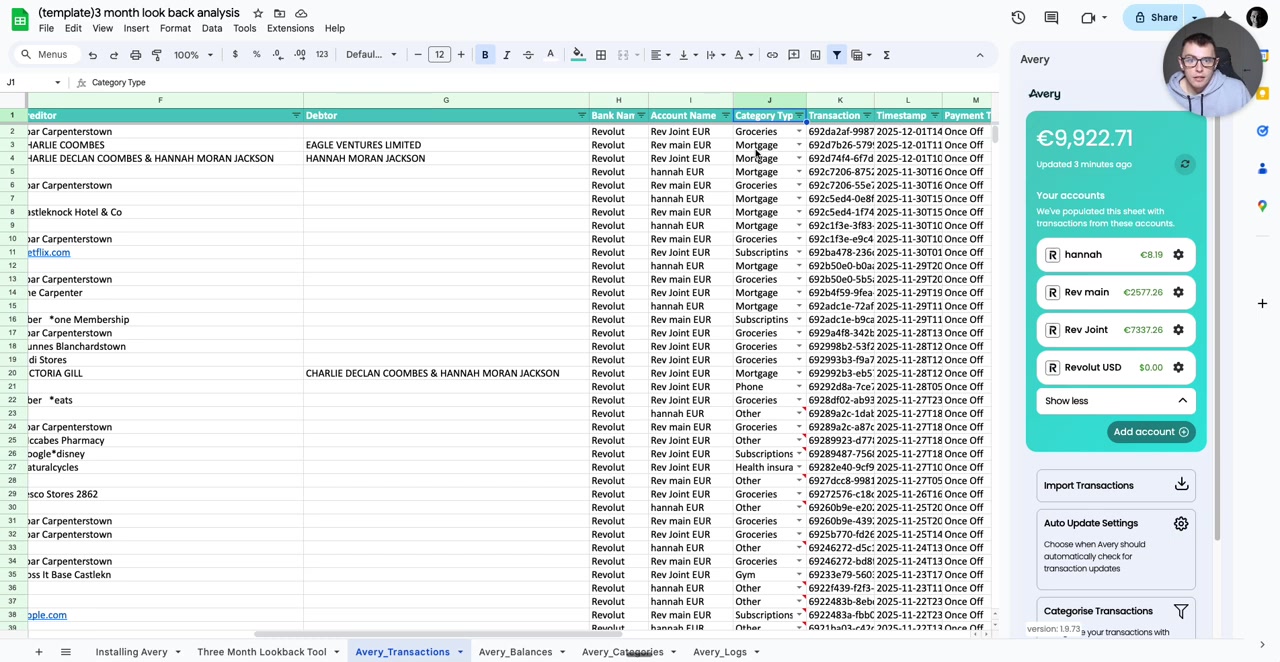
Common issues include:
Salary or income mislabeled as expenses
Ambiguous merchant names assigned to the wrong category
Missing categories (e.g., Income isn't pre-built)
To fix errors:
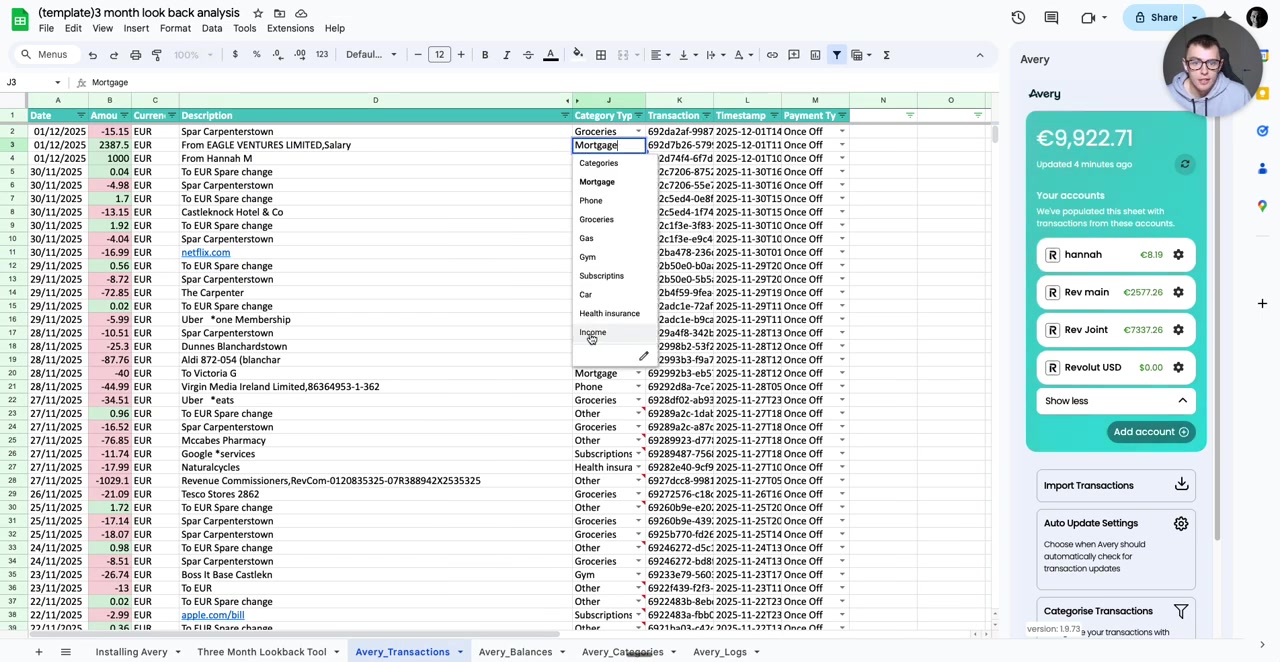
If needed, add missing categories (e.g., Income) to the Avery_Categories sheet first
In the Avery_Transactions sheet, click the Category Type cell for the miscategorized transaction
Use the dropdown to select the correct category
Repeat for all errors you identify
Once all transactions are correctly categorized, your lookback analysis is complete! Use the category totals to populate your monthly budget in Budgetdog.
Related Resources
Avery & Budgetdog Integration FAQ - General setup and authentication
Setting Up the Budgetdog Template - Step by Step - Template basics for beginners
Using Categories in the Budget Expenses - Estimate Tab - Advanced category management
Video Tutorial
Watch the full walkthrough: