
Avery Access Issues for BudgetDog Academy Users
Overview
If you're enrolled in Budgetdog Academy, have activated your Avery trial but still see a "Start a free trial" message (like in the screenshot below), it’s likely that the Google email account you’re using for your Sheets doesn’t match the email that you signed up with your Avery subscription. This guide will help you verify and fix the mismatch.
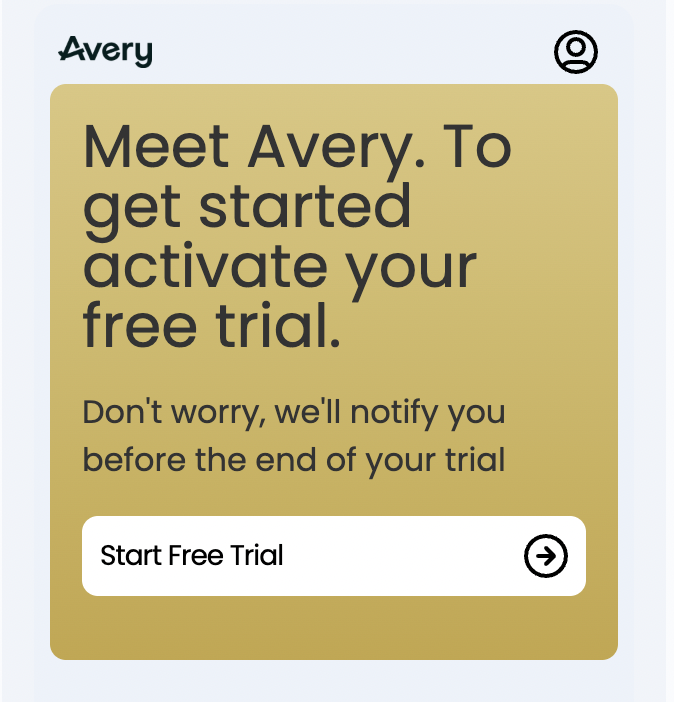
Avery requires a Gmail account and your subscription email must match the Google account you're logged into in Google Sheets.
Why This Happens
Avery is a Google Sheets add-on that ties your subscription to the Google email you used during signup. When you open the Budgetdog template, Avery checks if the Google account logged into Sheets matches your subscription email. If they don't match, you'll see the trial or code entry screen even if you have a paid account.
Step 1: Check Your Subscription Email
First, confirm which email is associated with your Avery subscription:
Check your inbox (including spam/promotions folders) for an email from Avery or Stripe with the subject "Your Avery Subscription" or "Receipt from Avery"
This email shows the exact address tied to your subscription
Write down this email address for the next step
Your subscription email must be a Gmail address. Non-Gmail accounts cannot access Avery in Google Sheets.
Step 2: Check Your Google Sheets Login
Next, verify which Google account you're currently using in Google Sheets:
Open your Budgetdog Google Sheet
Click the profile icon in the top-right corner of the screen
The email shown is the account you're logged into
Compare this to your subscription email from Step 1
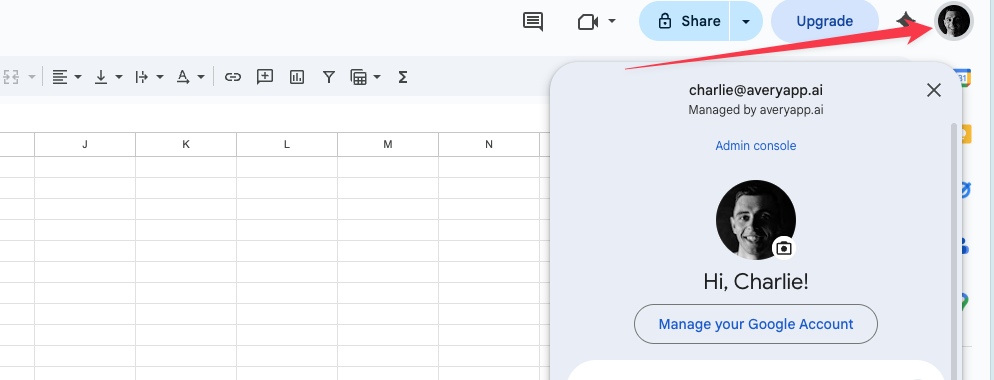
If you're logged into multiple Google accounts, the wrong one might be active. Look for a "Switch account" option in the profile menu.
Step 3: Fix the Mismatch
If the emails don't match, you have two options:
Option A: Switch Your Google Account (Recommended)
In Google Sheets, click your profile photo in the top-right corner
Select "Sign out" or "Use another account"
Sign in with the Gmail address that matches your Avery subscription
Reopen your Budgetdog template
Go to Extensions > Avery in the menu bar
Your subscription should now activate automatically
Option B: Update Your Subscription Email
If you can't access the Gmail associated with your subscription or prefer to use a different account:
Contact Avery support at [email protected]
Provide both your current subscription email and the Gmail you want to use
Support will transfer your subscription (typically within 24 hours)
Once confirmed, log into Sheets with the new Gmail and reopen your template
Still Having Issues?
If you've verified your emails match and still can't access Avery:
Try removing the Avery extension and reinstalling it from the Google Workspace Marketplace while logged into your subscription Gmail
Clear your browser cache and cookies, then sign in again
Check that you've granted all permissions when Avery asks for Sheet access
Contact [email protected] with screenshots of your subscription email and the error you're seeing
Related Resources
For additional help with your Budgetdog integration:
Avery & Budgetdog Integration FAQ - General troubleshooting and setup questions
Setting Up the Budgetdog Template - Step by Step - Complete onboarding guide
Switch Between Multiple Google Accounts - Google's official guide