
How to set up for 2026
Start fresh each year with a clean Budget Dog template while preserving your setup and historical data. This guide walks you through copying your existing template, clearing old transactions, and reconnecting your accounts for the new year.
Before You Start
Make sure you have:
An active Avery subscription
Your current Budget Dog template with existing data
Access to Google Sheets on a laptop or desktop (mobile has limited functionality)
Keep your previous year's template intact as a backup. You can always reference old data if needed.
Step 1: Make a Copy of Your Current Budget Dog File
Creating a copy preserves your original template with all last year's data while giving you a fresh file for the new year.
Open your current Budget Dog file in Google Sheets
Click File in the top menu
Select Make a copy
In the dialog box, name your copy (e.g., "Budget Dog 2025")
Choose the Google Drive folder where you want to save it
Click Make a copy
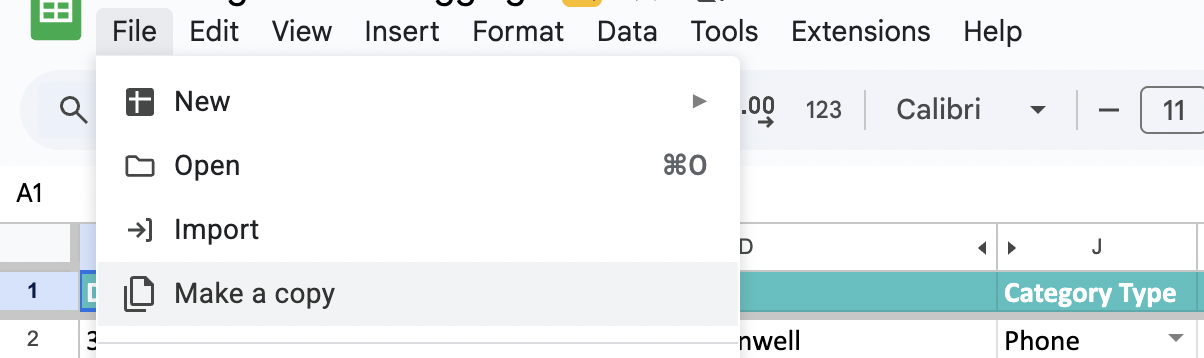
Google Sheets will open your new copy automatically. The copy includes all your tabs, formulas, categories, and transaction data from the original file.
You may see a warning about copying Apps Script projects. This is normal and safe to proceed. Avery is attached to your Google account email, so the add-on will work in the copied sheet.
Step 2: Rename the Copy for the New Year
Give your new template a clear name so you can easily distinguish it from previous years.
Option 1: Rename in Google Sheets
Click the file title at the top of the screen
Delete the old name and type your new name (e.g., "Budget Dog 2025")
Press Enter to save
Option 2: Rename in Google Drive
Go to Google Drive and locate your copied file
Right-click the file name
Select Rename
Enter your new name and press Enter
Use a consistent naming convention like "Budget Dog [Year]" to keep your files organized across years.
Step 3: Clear Out the Previous Year's Data
Remove last year's transactions to start fresh. You have two options depending on whether you want to keep your category mappings and settings.
Option A: Manual Clear (Preserves Everything Except Transactions)
Open the Avery_Transactions tab in your new copy
Click the row number 2 to select the first data row (below the headers)
Hold Shift and scroll down, then click the last row with data to select all transaction rows
Right-click the selected rows and choose Clear contents
Repeat for monthly Actuals tabs if you want to reset those as well
Never delete the header row (row 1) in the Avery_Transactions tab. This breaks the formulas and categorization features.
Option B: Use the Reset Button (Full Reset)
In your Google Sheet, click Extensions in the top menu
Select Avery to open the sidebar
Scroll down and click Reset BudgetDog
Confirm the reset when prompted
This clears all monthly Actuals tabs, resets category mappings, and empties the Avery_Transactions tab. Your bank connections remain intact.
Step 4: Reconnect or Edit Accounts
Verify your bank connections are working and update them if needed.
Check Existing Connections
Open the Avery sidebar (Extensions > Avery)
Look for your connected bank accounts in the sidebar
If accounts appear and show recent connection dates, they're still active
Bank connections typically carry over when you copy a Google Sheet. Plaid connections expire every 1-2 years, so you may not need to reconnect unless you see an error.
Reconnect Expired or Missing Accounts
In the Avery sidebar, click Link Bank Account
Select your country (North America uses Plaid, Europe uses GoCardless)
Search for and select your bank
Log in and authorize Avery to access your accounts
Choose which accounts to connect
Select the date range for importing transactions (e.g., January 1, 2025 onward)
If you reconnect an account that's already linked, you may create duplicates. Check the sidebar first and delete duplicate connections using the 3-dot menu next to the account name.
Edit Account Names
In the Avery sidebar, find the account you want to rename
Click the account name
Type the new name and press Enter
Click the refresh icon to sync changes
After Setup: Final Steps
Once your new template is ready, complete these tasks to ensure everything works smoothly:
When importing transactions for the first time, use a custom date range starting from January 1 of the new year. Avoid using preset date ranges like "Last 30 days" which might pull in old year transactions.
Set auto-update schedule: In the Avery sidebar, configure when transactions automatically import (e.g., daily at 9 AM). If you already have auto-update enabled on your old sheet, you'll see a warning asking you to confirm moving it to the new sheet.
Review categories: Open the Budgeted Expenses - Estimate tab and verify your category list matches your current budget needs. Learn more about using categories.
Run categorization: Click Categorize Transactions in the sidebar to map new transactions to your categories
Check the dashboard: Review your dashboard for accuracy and adjust any budget alerts or targets
Your new Budget Dog template is ready! Transactions will now import automatically based on your schedule.
Troubleshooting Common Issues
Duplicate Accounts After Reconnecting
If you see the same bank account listed twice in the Avery sidebar:
Click the 3-dot menu next to the duplicate account
Select Delete
Keep only the most recently connected version
Transactions Not Categorizing Correctly
AI categorization rules don't transfer when you reset the template. To fix:
Open the Avery_Transactions tab
Review Column J (Category column)
Manually assign categories to recurring transactions (e.g., "Jacinta Moore" → "Rent")
The AI will learn and auto-categorize similar transactions going forward
For detailed guidance, see Reviewing and Fixing Your Budgetdog Template.
Sync Failures or Missing Transactions
If transactions aren't importing,:
Bank connection issues: If your bank connection needs attention, you'll see a prompt in the sidebar asking you to re-consent. This will restore transaction syncing. If you need further help, email us at [email protected]
Need More Help?
If you run into issues during your yearly reset:
Check our step-by-step setup guide for detailed bank linking and categorization instructions
Contact our 24/7 live chat support directly in your Google Sheet sidebar