
What is Rules Based Categorization?
Overview
Rules train Avery's AI to automatically categorize transactions based on keywords in merchant names or descriptions. Once created, rules apply to all future imports and can be re-run on existing data.
Before You Start
Ensure you have:
Imported transactions from your connected bank accounts
Customized your expense categories in the Budget Expenses - Estimate tab
Opened the Avery sidebar (Extensions > Avery > Open)
Creating a Rule
Review transactions: Navigate to the Avery_Transactions tab and scroll to Column J (Category Type). Use Ctrl+F or filter Column J to find miscategorized transactions (e.g., everything in "Miscellaneous").
Open categorization tool: In the Avery sidebar, go to Quick Actions > Categorize Transactions.
Create Rule: In the "When Description contains" field, type keywords from the transaction description (e.g., "Fred Makinde" for your landlord). Separate multiple keywords with commas.
Save the rule: Click Save. Avery remembers this rule for all future matches.
Take a look at the screenshot for reference
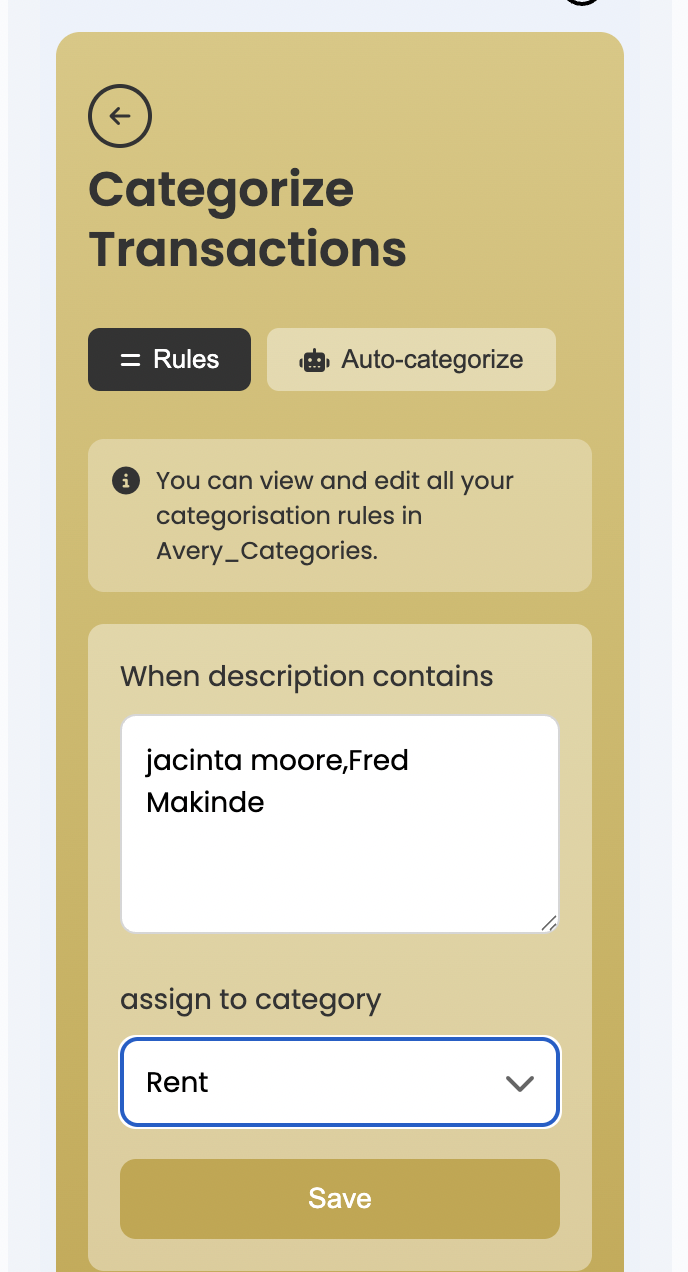
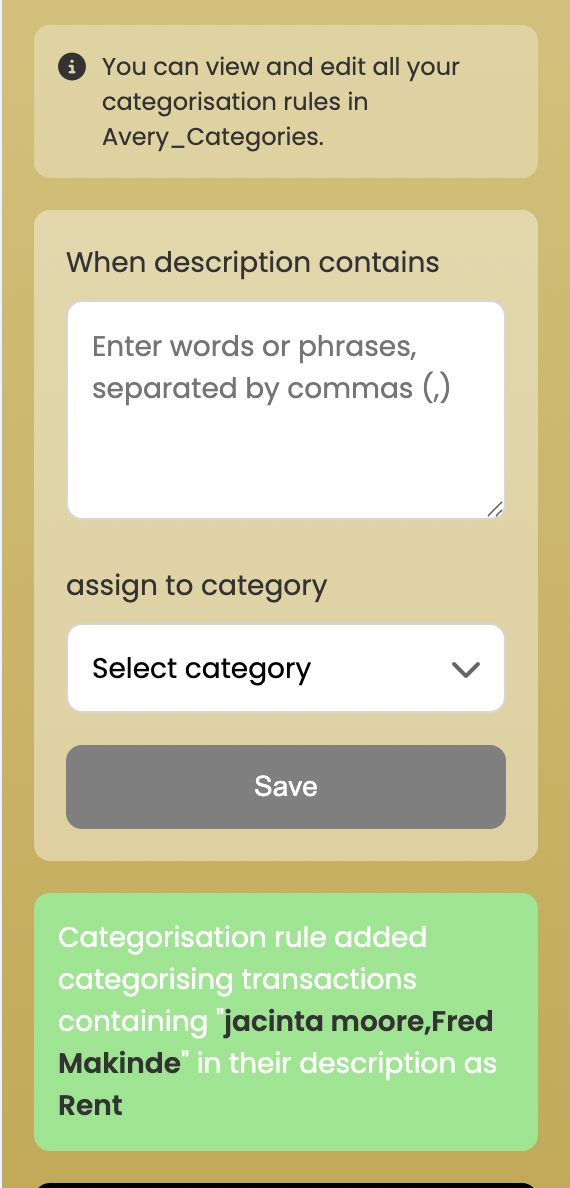
Hide columns E-I in your Transactions tab to view descriptions (Column D) next to categories (Column J) more easily.
Applying Rules to Transactions
Run categorization: Go to the sidebar → click Quick Actions → select Categorize Transactions → then click Run Categorization.Processing takes 1-5 minutes depending on transaction volume.
Verify results: Check Column J in Avery_Transactions to confirm updates.
Rules automatically apply to new transactions during daily syncs (midnight). Re-run categorization manually only if you've added new rules or reset your sheet.
Common Use Cases
Fix income categorization: If salary appears as "Variable Income" instead of "Income," create a rule with your employer's name as the keyword.
Reduce "Miscellaneous" bloat: Filter Column J for "Miscellaneous," then create specific rules (e.g., "Coffee Shop" for "Dining Out") or ignore irrelevant items (choose "IGNORED" category).
Ignore transfers: Categorize credit card payments or internal transfers as "IGNORED" to exclude them from budgets.
Rules improve accuracy over time, but AI may still misclassify unusual transactions. Review Column J periodically and adjust rules as needed.
Related Articles
Reviewing and Fixing Your Budgetdog Template - Troubleshoot categorization issues
Setting Up the Budgetdog Template - Step by Step - Full setup guide with video walkthrough
Resetting Your Budgetdog Sheet - Re-categorize after a reset